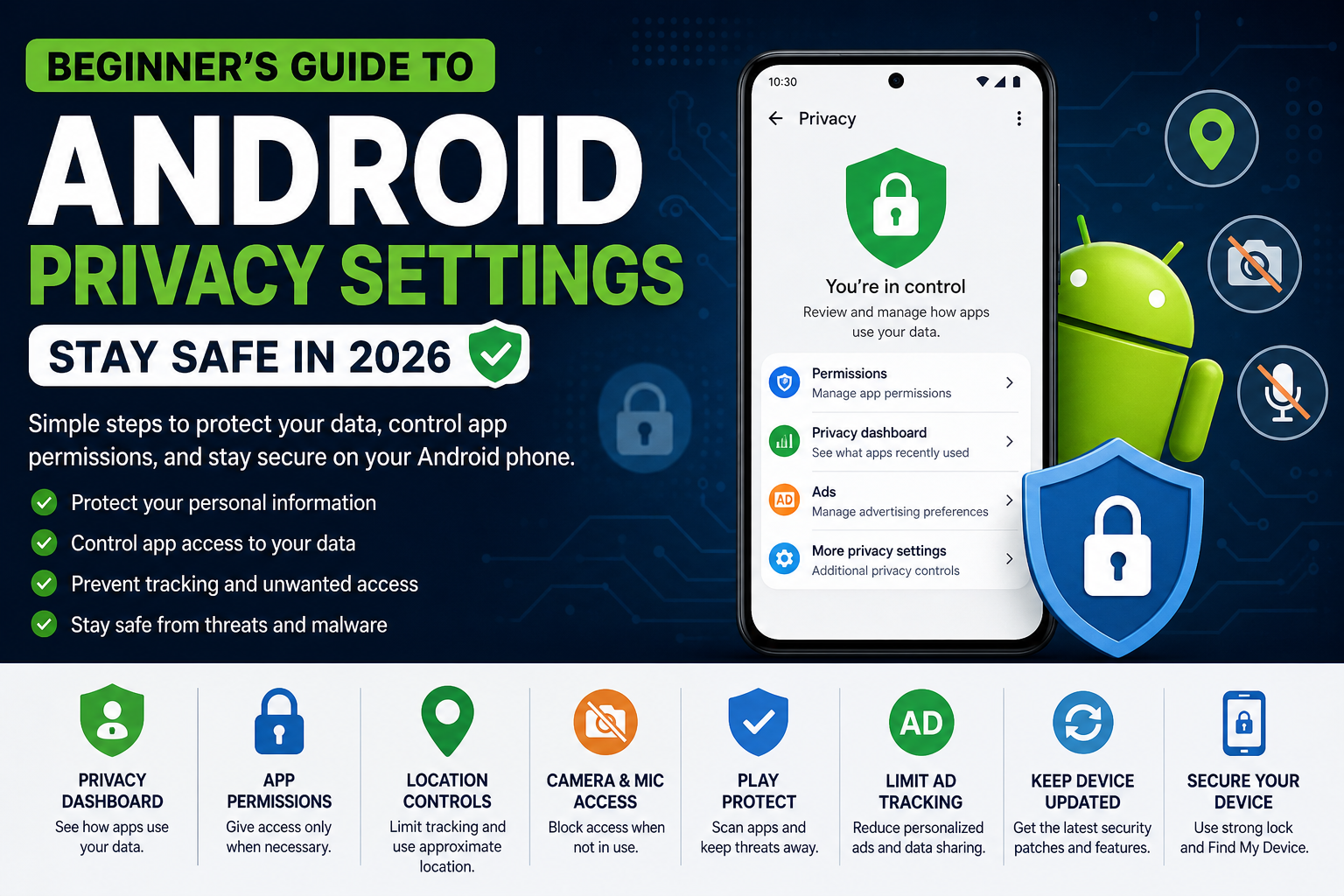
Smartphones today are more powerful than ever, and if you’re using a device powered by Android, your phone likely holds everything from personal photos to banking details. While Android offers flexibility and smart features, it also requires users to take responsibility for their privacy.
In 2026, cyber threats, tracking technologies, and data collection practices have become more advanced. But the good news is—Android has also improved its privacy controls significantly. This beginner-friendly guide will help you understand and use Android privacy settings effectively to stay safe.
Why Android Privacy Matters in 2026
Every app you install may request access to sensitive data such as your location, contacts, camera, or microphone. While some permissions are necessary, many apps collect more data than required.
Common Privacy Risks:
- Apps tracking your location in the background
- Unauthorized microphone or camera access
- Data sharing with advertisers
- Phishing and malware attacks
Protecting your data is not just about security—it’s about control. Android now gives you tools to manage this control effectively.
1. Use Privacy Dashboard (Your Control Center)
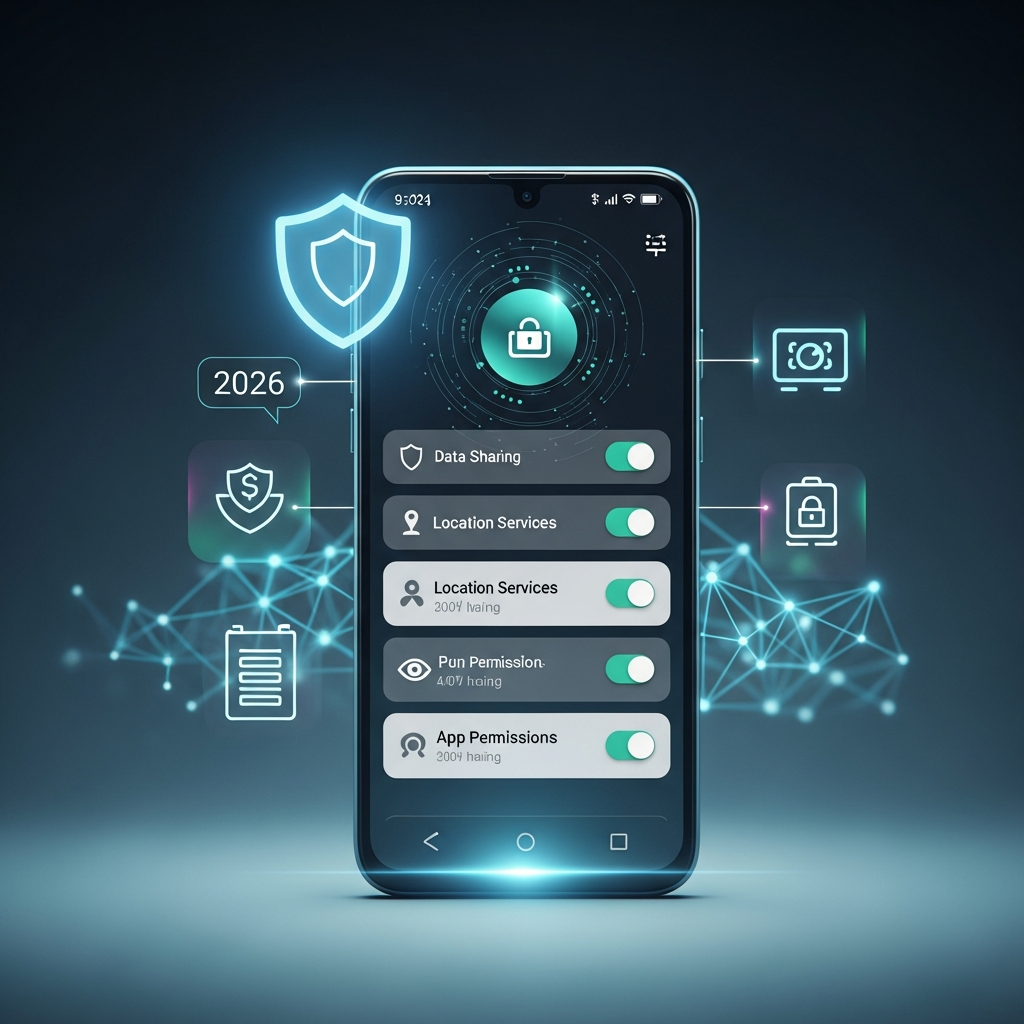
Android’s Privacy Dashboard gives a complete overview of how apps access your data.
How to Access:
- Go to Settings → Privacy → Privacy Dashboard
What You Can See:
- Which apps used camera, microphone, location
- Timeline of permission usage
- Quick access to revoke permissions
Why It’s Important:
It provides transparency. If an app is behaving suspiciously, you’ll know immediately.
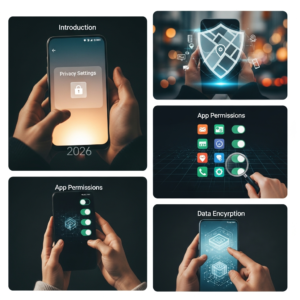
2. Manage App Permissions Smartly
Apps often ask for permissions that are not necessary for their function.
Types of Permissions:
- Location
- Camera
- Microphone
- Contacts
- Storage
Best Practices:
- Allow permissions only when needed
- Choose “While using the app” instead of “Always”
- Deny irrelevant permissions
How to Manage:
- Settings → Privacy → Permission Manager
3. Control Location Tracking
Location data is one of the most sensitive pieces of information.
What You Should Do:
- Turn off location when not needed
- Use Approximate Location
- Disable location history in your Google account
Steps:
- Settings → Location → Adjust permissions
4. Disable Camera & Microphone Access
Android now allows you to disable camera and mic access system-wide.
How:
- Swipe down Quick Settings
- Tap Camera Access / Mic Access
Extra Safety:
Watch for the green indicator that shows when camera/mic is active.
5. Monitor Background App Activity
Some apps run in the background and collect data continuously.
Steps:
- Settings → Apps → Select app
- Tap Battery / Data usage
- Restrict background activity
Tip:
Delete unused apps regularly.
6. Enable Google Play Protect
Google Play Protect scans apps for harmful behavior.
Enable It:
- Open Play Store
- Tap profile → Play Protect → Turn ON
Benefit:
Prevents malware and unsafe apps from harming your device.
7. Limit Ad Tracking
Advertising networks track your behavior to show personalized ads.
Reduce Tracking:
- Settings → Privacy → Ads
- Tap Delete Advertising ID
Result:
Less tracking and improved privacy.
8. Secure Your Lock Screen
Your lock screen protects everything inside your phone.
Recommended:
- Fingerprint lock
- Face unlock (secure version)
- Strong password or PIN
Avoid:
- Simple patterns
Extra Tip:
Hide sensitive notifications on lock screen.
9. Keep Your Android Updated
Updates fix security vulnerabilities.
Steps:
- Settings → System → Software Update
- Enable auto-update
Why:
Outdated devices are easy targets for hackers.
10. Use Android 13+ Privacy Features
Latest Android versions include:
Key Features:
- Photo Picker (limited photo access)
- Clipboard auto-delete
- Nearby device permission control
11. Review Third-Party Access
Many apps connect to your Google account.
Check:
- Google Account → Security → Third-party access
- Remove unused apps
12. Practice Safe Browsing
Browsing can expose your data.
Tips:
- Use trusted browsers like Google Chrome
- Avoid suspicious links
- Enable Safe Browsing
13. Enable Find My Device
Find My Device helps track your phone.
Features:
- Locate device
- Lock remotely
- Erase data
14. Avoid Public Wi-Fi Risks
Public Wi-Fi is unsafe.
Safety Tips:
- Avoid banking/logins
- Use VPN
- Turn off auto-connect
15. Regular Privacy Checkup
Every month:
- Review permissions
- Delete unused apps
- Check suspicious activity
Common Mistakes to Avoid
- Allowing all permissions blindly
- Downloading APKs from unknown sources
- Ignoring updates
- Not using screen lock
- Connecting to unsafe Wi-Fi
Quick Privacy Checklist
✔ Check Privacy Dashboard
✔ Limit app permissions
✔ Disable unnecessary location
✔ Turn off mic/camera access
✔ Enable Play Protect
✔ Keep device updated
✔ Use secure lock screen
FAQs ❓
- How do I check app permissions on Android?
Go to Settings → Privacy → Permission Manager. - Is Android safe in 2026?
Yes, with proper privacy settings and updates. - What is Privacy Dashboard?
It shows how apps use your data like camera, mic, and location. - Should I disable location?
Yes, when not needed to protect privacy.
Final Thoughts
Android has become more secure, but your privacy depends on how you use it. By adjusting a few important settings and staying aware, you can protect your personal data effectively.
In 2026, digital privacy is essential—not optional. Start with small changes today and build a safer mobile experience.