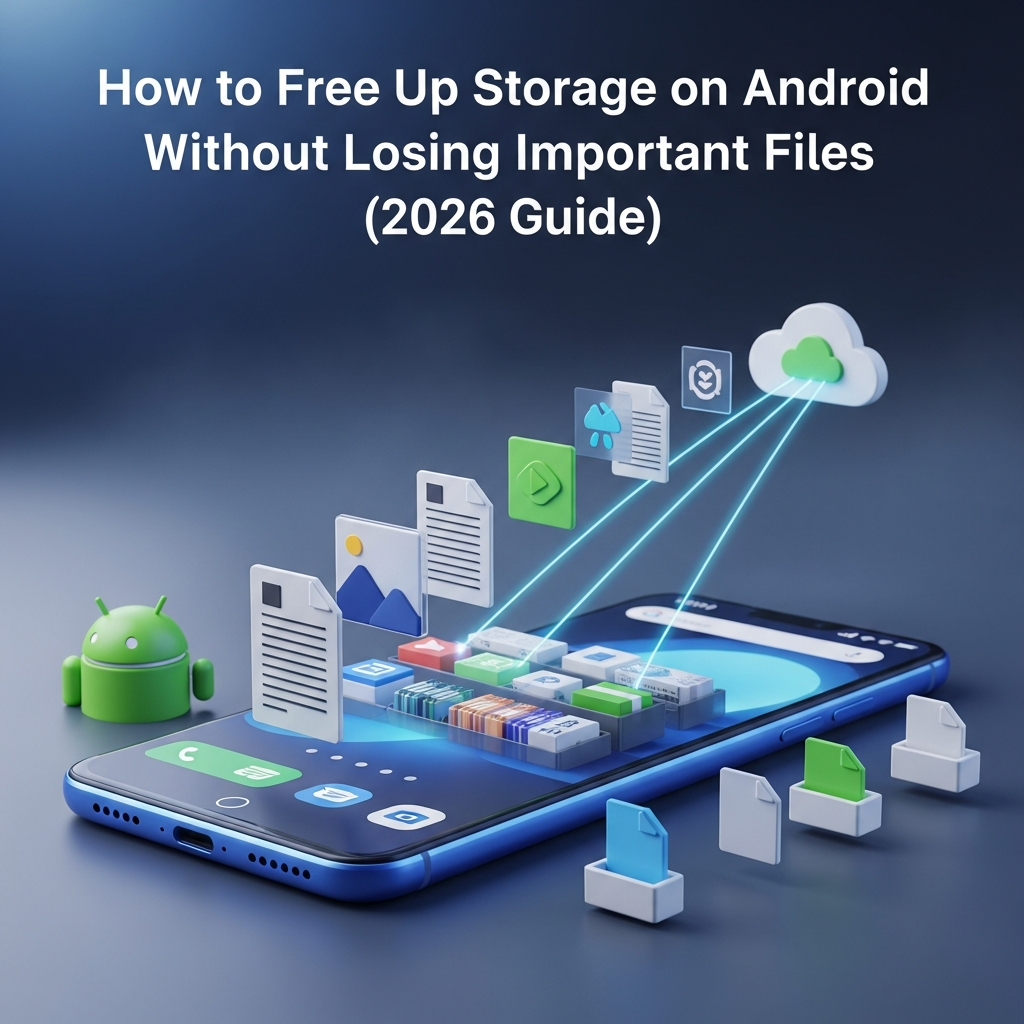
Running out of storage on your Android phone can be frustrating. You may see warnings like “Storage Almost Full,” apps may slow down, and you might not even be able to take photos or install updates.
But here’s the good news: you don’t need to delete your important files to free up space.
In this complete 2026 guide, you’ll learn safe and effective ways to free up storage on Android without losing important data, using built-in tools, smart techniques, and free apps.
Why Your Android Storage Gets Full
Before fixing the problem, it’s important to understand what is taking up space.
Common Reasons:
- Large photos and videos
- WhatsApp media files
- App cache and temporary files
- Unused apps
- Downloads folder clutter
- Duplicate files
Over time, these files build up and consume your storage.
Step 1: Check What’s Using Your Storage
Start by analyzing storage usage.
How to Check:
- Go to Settings
- Tap Storage
- View categories like:
- Apps
- Photos
- Videos
- Audio
- Files
This helps you identify where space is being used.
Step 2: Clear App Cache (Safe & Recommended)
Clearing cache removes temporary files without deleting personal data.
Steps:
- Go to Settings → Apps
- Select an app (like Instagram or Chrome)
- Tap Storage
- Click Clear Cache
Important:
- Do not tap “Clear Data” unless necessary
- Cache can rebuild over time
This is one of the safest ways to free space quickly.
Step 3: Use Google Files to Clean Storage
Files by Google is a powerful free app designed to clean storage safely.
Features:
- Removes junk files
- Finds duplicate files
- Suggests large files to delete
- Cleans memes and WhatsApp forwards
How to Use:
- Install Files by Google
- Open the Clean tab
- Review suggestions
- Delete unnecessary files
This app ensures you don’t accidentally remove important data.
Step 4: Delete Duplicate Files
Duplicate photos, videos, and documents can take up a lot of space.
How to Remove:
- Use Files by Google
- Or manually check folders
Focus on:
- Screenshots
- Forwarded images
- Downloaded files
Step 5: Move Files to Cloud Storage
Cloud storage allows you to free up space without deleting files.
Best Option:
Google Photos
Steps:
- Upload photos/videos to Google Photos
- Enable Backup & Sync
- Use “Free up space” option
Your files stay safe in the cloud and can be accessed anytime.
Step 6: Transfer Files to Laptop or External Storage
If you don’t want to rely on cloud storage:
Options:
- Transfer files to laptop
- Use USB drive (OTG)
- Use external hard drive
This is useful for large videos and backups.
Step 7: Clean WhatsApp Storage
WhatsApp is one of the biggest storage consumers.
Steps:
- Open WhatsApp
- Go to Settings → Storage and Data → Manage Storage
- Review large files and chats
- Delete unwanted media
Tip:
Turn off auto-download:
- Settings → Storage → Media auto-download

Step 8: Uninstall Unused Apps
Many apps sit unused but still consume storage.
How to Identify:
- Go to Settings → Apps
- Sort by size or usage
Remove apps you don’t use regularly.
Step 9: Clear Downloads Folder
The Downloads folder often contains unnecessary files.
What to Delete:
- Old PDFs
- APK files
- Images
- Duplicate downloads
This folder is often overlooked but can free up significant space.
Step 10: Use Lite Versions of Apps
Heavy apps take more storage.
Alternatives:
- Facebook Lite
- Instagram Lite
- YouTube Lite
Lite apps use less space and data.
Step 11: Reduce Camera File Size
Photos and videos consume a lot of storage.
Tips:
- Lower camera resolution (if needed)
- Avoid unnecessary videos
- Delete blurred or duplicate photos
Step 12: Enable Smart Storage (Android Feature)
Many Android devices offer smart storage options.
Features:
- Automatically delete backed-up photos
- Remove unused files
Check:
Settings → Storage → Smart Storage
Step 13: Use SD Card (If Available)
If your phone supports SD card:
Move:
- Photos
- Videos
- Documents
This helps reduce internal storage usage.
Step 14: Delete Old Backups
Backup files can take space.
Check:
- Google Drive backups
- App backups
Remove outdated backups you no longer need.
Step 15: Avoid These Mistakes
❌ Don’t Do:
- Deleting random system files
- Clearing app data without backup
- Using unsafe cleaner apps
- Removing important documents
Always double-check before deleting anything.
Best Apps to Free Storage Safely
Here are some trusted apps:
- Files by Google
- Google Photos
- CCleaner
These apps help clean storage without data loss.
How Much Storage Should You Keep Free?
For smooth performance:
- Keep at least 20–30% storage free
- Avoid filling storage completely
This improves speed and app performance.
Signs You Need to Free Storage
- Phone becomes slow
- Apps crash frequently
- Cannot install updates
- Camera stops working
- “Storage full” warnings
If you notice these, clean storage immediately.
Bonus Tips for Long-Term Storage Management
- Clean storage once a week
- Backup files regularly
- Avoid unnecessary downloads
- Organize files into folders
- Use cloud storage wisely

Final Thoughts
Freeing up storage on your Android phone doesn’t mean losing important files. With the right approach, you can safely remove junk, optimize space, and keep your data secure.
Use tools like Files by Google, backup your photos with Google Photos, and regularly clean unnecessary files.
By following these steps, your phone will run faster, smoother, and more efficiently in 2026.