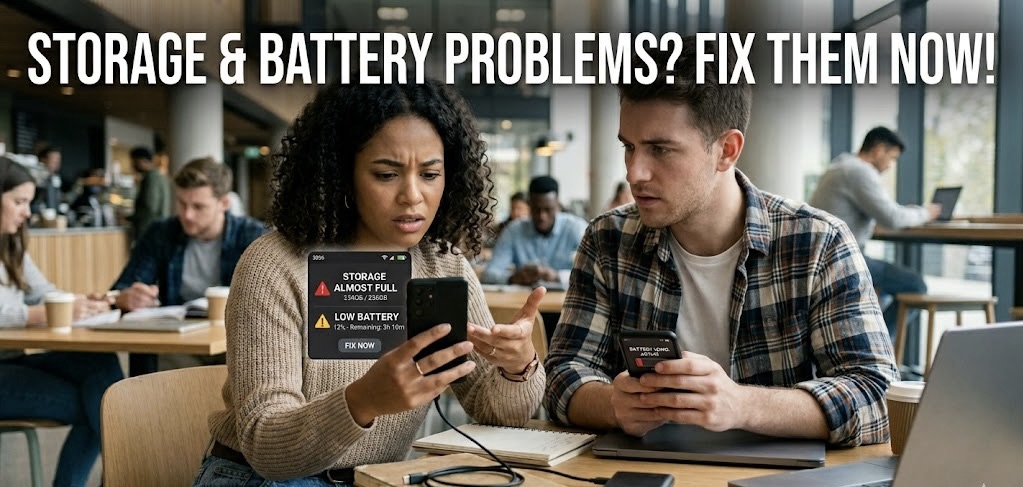
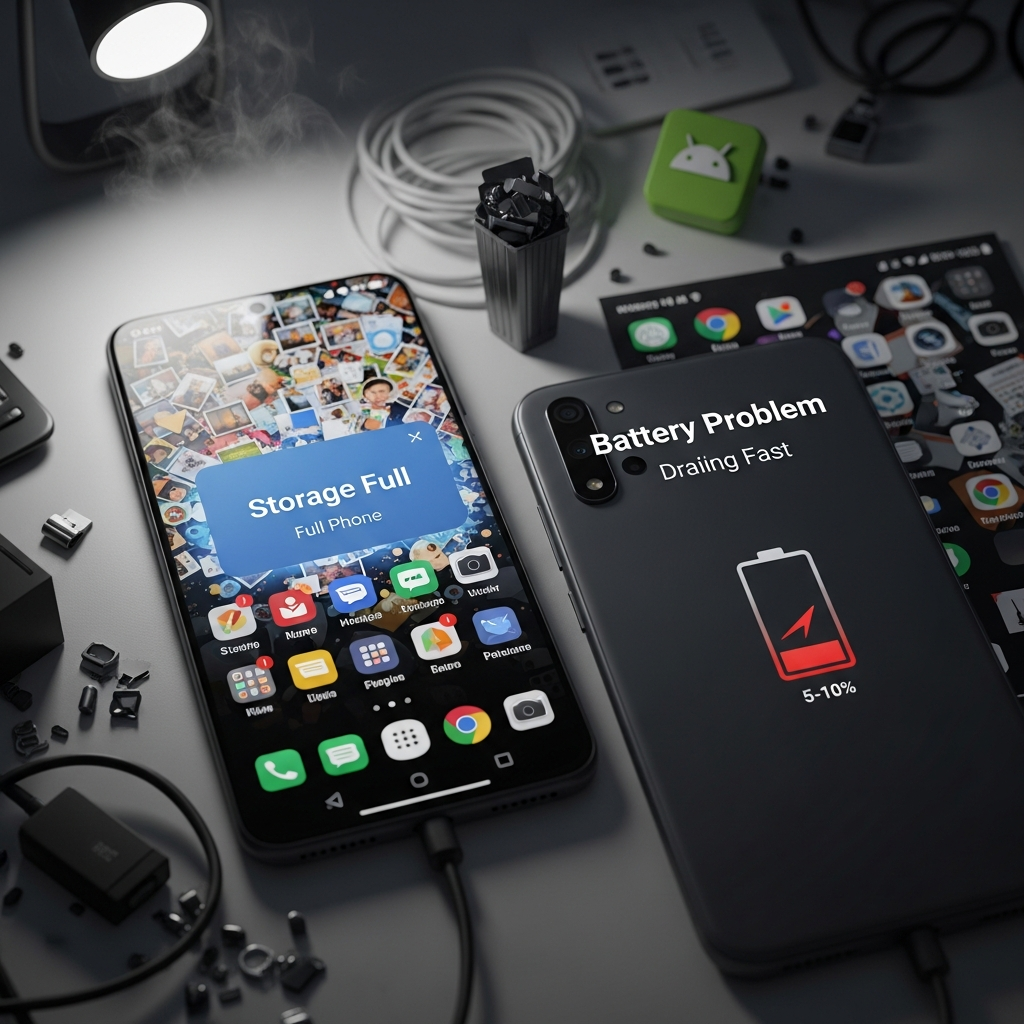
If your Android phone suddenly shows “Storage Full” or your battery drains faster than expected, you’re not alone. In 2026, many users are facing unexpected storage and battery issues—even on new smartphones.
With AI features, background apps, and system updates becoming more advanced, Android devices are using more resources than ever before. While these improvements bring better performance and smarter features, they can also lead to problems like:
- Storage filling up without clear reason
- Battery draining quickly after updates
- Phone heating or slowing down
The good news? Most of these problems are fixable.
In this guide, you’ll learn the real reasons behind storage and battery issues in 2026 and practical solutions you can apply immediately.
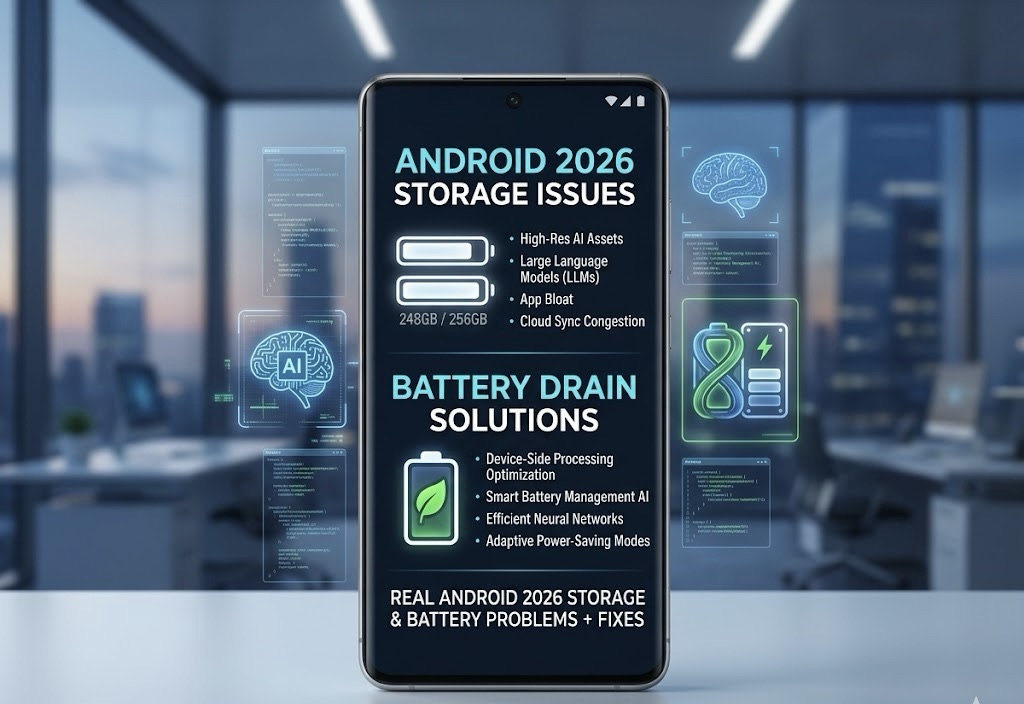
Why Android Storage Gets Full So Quickly in 2026
1. System Apps Taking Hidden Space
Modern Android versions include AI-powered system apps and services that run in the background. These apps often store temporary files, logs, and cached data.
You may notice:
- “System Storage” taking up huge space
- Files that you didn’t download
- Storage filling up automatically
2. Cached Data Overload
Apps like social media, browsers, and streaming platforms store temporary files (cache) to load faster.
Over time, this cache can grow into several GBs without you noticing.
3. Duplicate Photos & Media Files
With WhatsApp forwards, screenshots, and downloads, your phone may store multiple copies of the same image or video.
4. Large App Sizes
Apps are getting heavier every year. Some apps now take:
- 500MB to 2GB+ storage
- Extra data for offline use
5. AI & Background Data Storage
New AI features generate and store data locally for better performance. This includes:
- Voice recognition data
- Smart suggestions
- App usage patterns
How to Fix Storage Problems (Step-by-Step)
1. Clear App Cache
Go to:
Settings → Apps → Select App → Storage → Clear Cache
Focus on apps like:
- Browser
- YouTube
2. Use Built-in Storage Cleaner
Most Android phones have a “Storage Cleaner” option.
It helps remove:
- Junk files
- Temporary data
- Duplicate files
3. Delete Duplicate Files
Use file manager apps or built-in tools to find:
- Duplicate photos
- Large videos
- Unused downloads
4. Move Files to Cloud Storage
You can upload photos and videos to:
- Google Photos
- Google Drive
Then delete them from your device to free space.
5. Uninstall Unused Apps
Check apps you haven’t used in the last 30 days and remove them.
6. Use Lite Versions of Apps
Switch to lighter versions like:
- Facebook Lite
- YouTube Go
They use less storage and data.
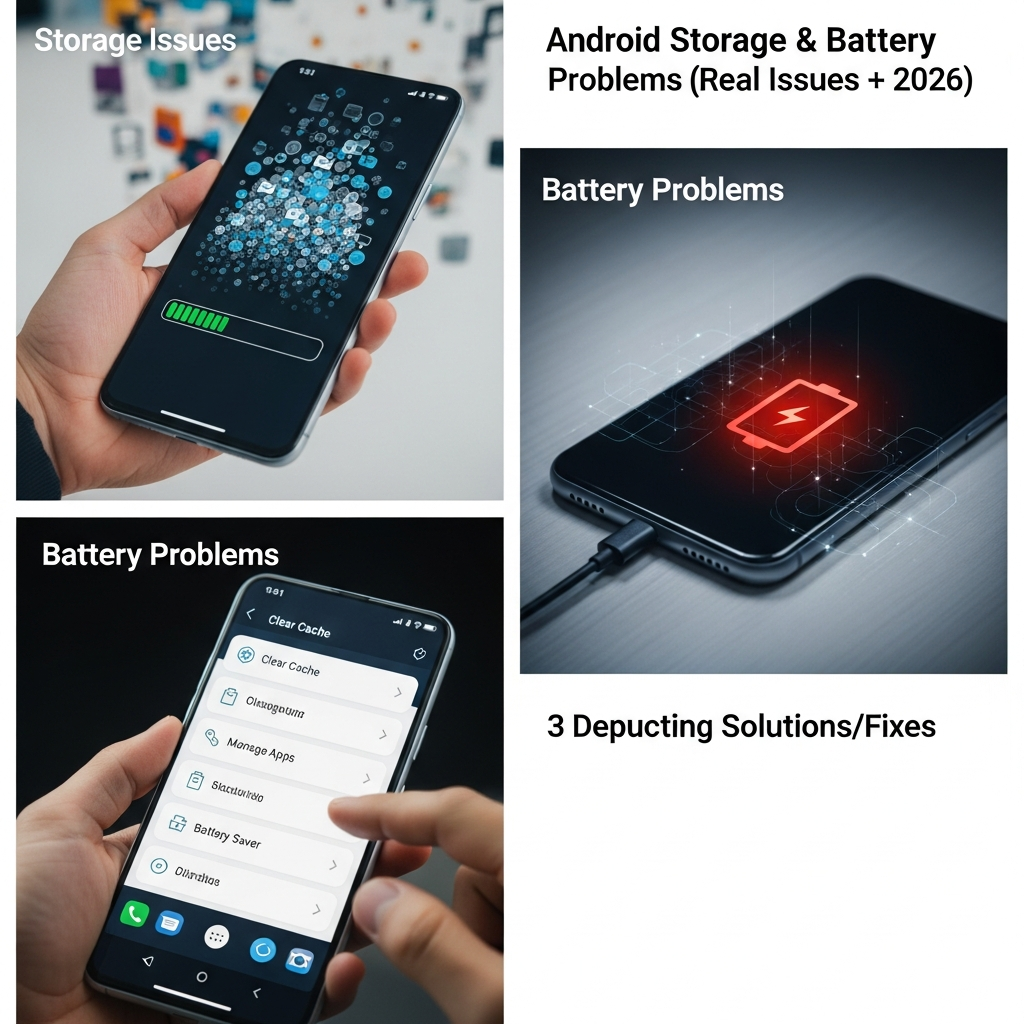
Why Battery Drains Fast in 2026
1. Background Apps Running Continuously
Many apps run in the background even when you’re not using them.
They consume:
- Battery
- Data
- Processing power
2. AI Features Running Constantly
AI-based features like voice assistants, smart suggestions, and automation run continuously in the background.
3. Software Updates & Bugs
Sometimes updates introduce bugs that cause:
- Battery drain
- Heating issues
- Performance drops
4. High Screen Usage
Features like:
- High brightness
- 120Hz refresh rate
- Always-on display
can drain battery quickly.
5. Poor Charging Habits
Charging habits also affect battery health over time.
How to Fix Battery Drain Issues
1. Check Battery Usage
Go to:
Settings → Battery → Battery Usage
Identify apps that consume the most power and restrict them.
2. Enable Battery Saver Mode
Turn on Battery Saver to limit background activity.
3. Reduce Screen Settings
- Lower brightness
- Switch to 60Hz refresh rate
- Turn off always-on display
4. Restrict Background Apps
Go to:
Settings → Apps → Select App → Battery → Restrict
5. Turn Off Unnecessary Features
Disable:
- Bluetooth (when not needed)
- Location services
- Auto-sync
6. Keep Your Phone Updated
Updates often fix battery-related bugs.
7. Restart Your Phone Regularly
Restarting clears temporary processes and improves performance.
Common Mistakes to Avoid
- ❌ Installing too many apps
- ❌ Ignoring software updates
- ❌ Using unknown apps
- ❌ Keeping storage almost full
- ❌ Charging overnight daily
Pro Tips for Better Performance
- Keep at least 20% storage free
- Use dark mode to save battery
- Avoid heavy apps if your phone is older
- Use trusted apps only
- Clean your phone once a week
Real-Life Scenario (2026 Trend)
Many users in 2026 are noticing sudden:
- Storage spikes due to system apps
- Battery drain after updates
This is mainly because smartphones are becoming smarter with AI—but also heavier in resource usage.
Understanding this helps you manage your phone better.
When Should You Reset Your Phone?
If your phone still has issues after trying all fixes:
👉 Consider a factory reset if:
- Storage fills up repeatedly
- Battery drains abnormally
- Phone becomes very slow
⚠️ Always backup your data before resetting.
Future of Android Optimization
In the future, Android is expected to:
- Manage storage automatically using AI
- Improve battery efficiency
- Reduce background resource usage
This means fewer manual fixes for users.
Conclusion
Storage and battery problems are common in Android phones in 2026, but they are not impossible to fix. With the right steps, you can easily improve your phone’s performance and extend its lifespan.
By understanding the real causes—like background apps, AI features, and system updates—you can take control of your device and avoid frustration.
Start applying these fixes today, and your phone will feel faster, cleaner, and more efficient.