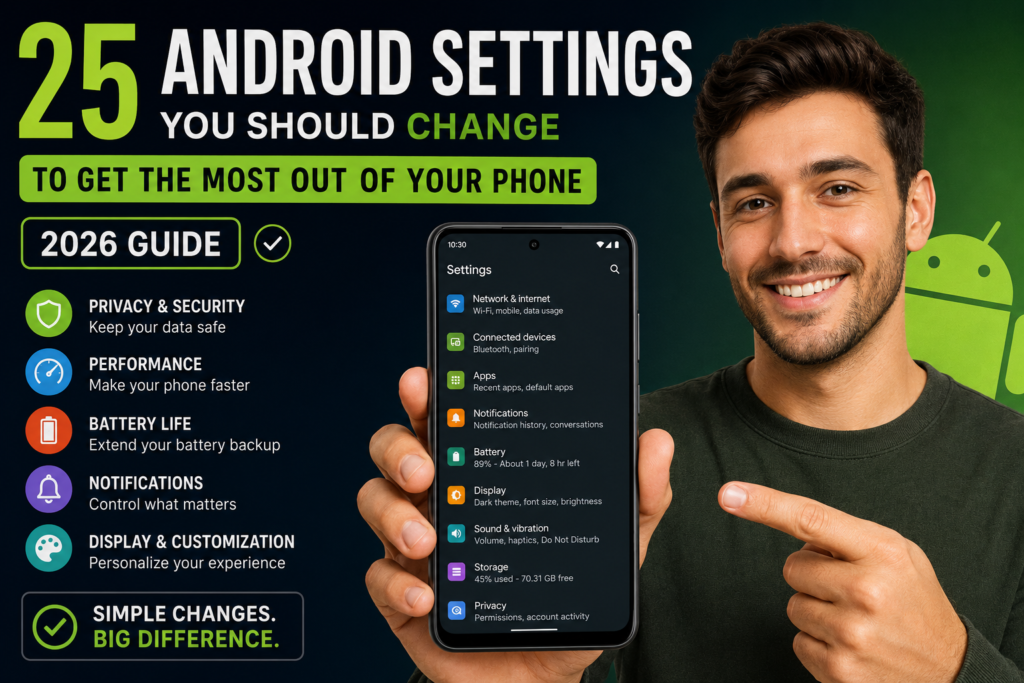
Most Android users only use a small percentage of what their smartphone can actually do. Hidden inside your settings are powerful features that can improve performance, battery life, privacy, security, and overall user experience.
In 2026, Android phones are smarter than ever thanks to AI-powered features, advanced customization, and improved optimization tools. But many of these settings are either disabled by default or buried deep inside menus.
If your phone feels slow, drains battery quickly, or simply doesn’t feel optimized, changing a few important settings can make a huge difference.
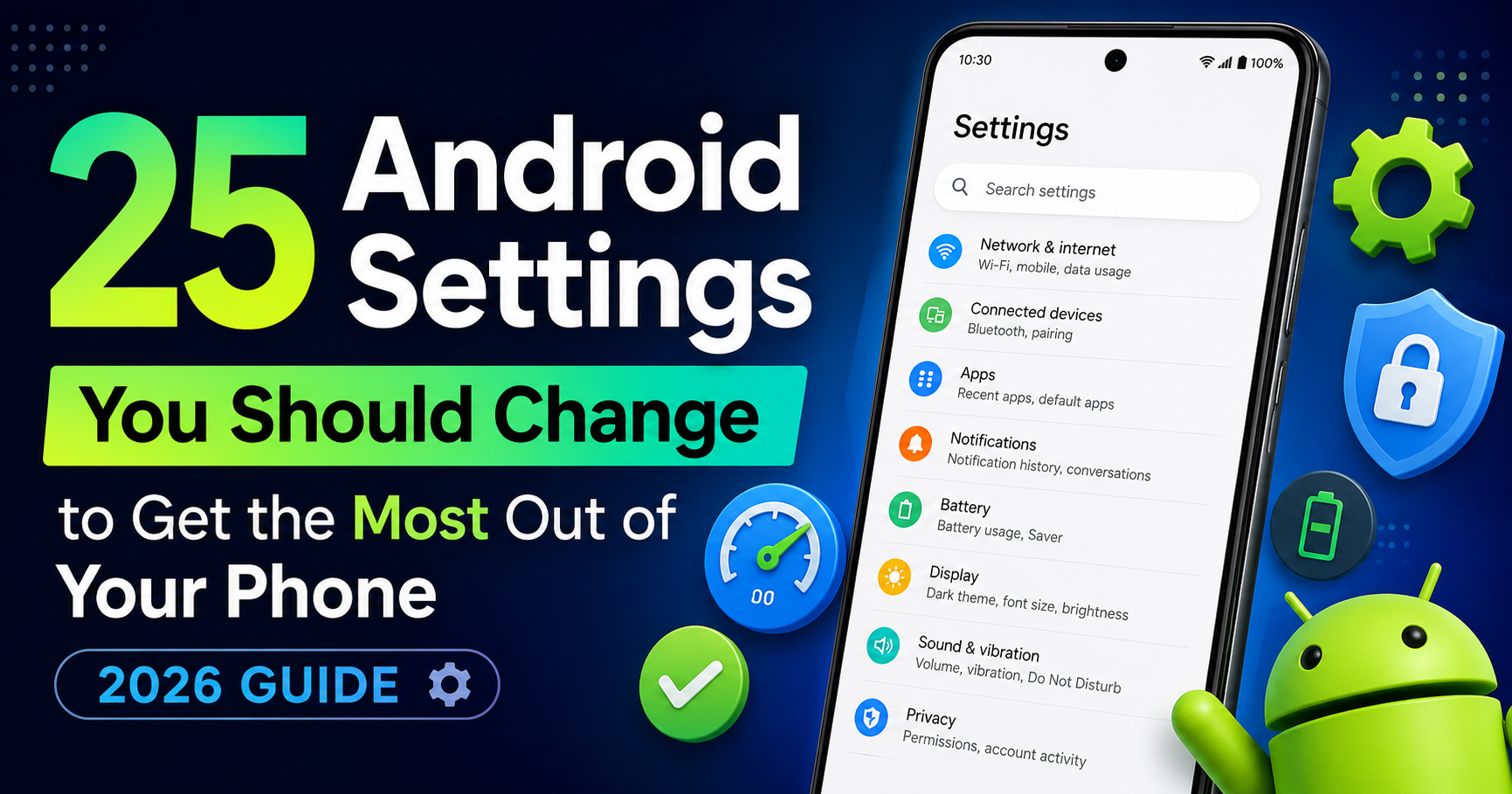
In this guide, we’ll cover 25 Android settings you should change immediately to get the best performance, privacy, and battery life from your phone in 2026.
Why Android Settings Matter More in 2026
Modern Android phones now include:
- AI-powered features
- Background optimization systems
- Advanced privacy controls
- Smart battery management
But if these settings are not configured properly, your phone may:
- Drain battery faster
- Use more data
- Slow down over time
- Reduce privacy protection
Optimizing settings helps your phone run better and last longer.
1. Turn On Adaptive Battery
Go to:
Settings → Battery → Adaptive Battery
This feature uses AI to learn your app usage patterns and reduce battery drain from unused apps.
Benefits:
- Better battery life
- Less background activity
2. Disable Unused Notifications
Too many notifications waste battery and create distractions.
Go to:
Settings → Notifications
Turn off notifications for apps you don’t need.
3. Enable Dark Mode
Dark Mode not only looks cleaner but also saves battery on AMOLED displays.
Benefits:
- Reduced eye strain
- Improved battery life
4. Turn Off Nearby Device Scanning
Android constantly searches for nearby devices even when Bluetooth is off.
Go to:
Settings → Location → Scanning
Disable:
- Bluetooth scanning
- Wi-Fi scanning
5. Reduce Animation Speed
This instantly makes your phone feel faster.
Enable Developer Options and reduce:
- Window animation scale
- Transition animation scale
Set them to 0.5x.
6. Disable Auto-Download in Apps
Apps like WhatsApp automatically download media.
Disable auto-download to:
- Save storage
- Reduce data usage
7. Turn On Find My Device
Go to:
Settings → Security → Find My Device
This helps locate your phone if it gets lost.
8. Use App Permissions Properly
Many apps access:
- Camera
- Microphone
- Location
without real need.
Review permissions regularly.
9. Clear Cache Regularly
Cached files build up over time and slow down performance.
Go to:
Settings → Apps → Storage → Clear Cache
10. Enable Adaptive Brightness
Your phone automatically adjusts brightness based on lighting conditions.
Benefits:
- Saves battery
- Improves comfort
11. Restrict Background Apps
Some apps continue running even when unused.
Go to:
Settings → Battery → Background Usage Limits
Restrict unnecessary apps.
12. Disable Keyboard Sounds & Vibrations
Small vibrations and sounds consume battery slowly over time.
Turning them off improves efficiency.
13. Turn Off Personalized Ads
Go to:
Settings → Privacy → Ads
Disable ad personalization for better privacy.
14. Use DNS Protection
Private DNS improves security and can block malicious websites.
Go to:
Settings → Network → Private DNS
15. Enable Theft Protection Features
Modern Android phones now include:
- Theft detection
- Auto-lock protection
- Remote device control
Enable these for extra safety.
16. Remove Unused Widgets
Too many widgets use RAM and battery continuously.
Keep only essential widgets on your home screen.
17. Turn Off Auto-Sync for Unnecessary Apps
Apps constantly syncing data can:
- Drain battery
- Use mobile data
Disable sync for apps you rarely use.
18. Use Storage Cleaner Tools
Most Android phones include built-in cleaners that remove:
- Junk files
- Duplicate files
- Temporary data
19. Enable Wi-Fi Calling
If supported by your carrier, Wi-Fi calling improves:
- Call quality
- Indoor connectivity
20. Turn Off 5G When Not Needed
5G uses more battery than 4G.
If signal is weak:
- Switch to LTE/4G temporarily
This improves battery life.
21. Lock Sensitive Apps
Use app lock features for:
- Banking apps
- Personal chats
- Gallery apps
This adds an extra security layer.
22. Disable Automatic App Installations
Sometimes apps install recommendations automatically.
Disable unnecessary app suggestions.
23. Turn On Data Saver Mode
Go to:
Settings → Network → Data Saver
This helps reduce background data usage.
24. Keep Software Updated
Software updates improve:
- Security
- Battery optimization
- Performance
Always keep your phone updated.
25. Restart Your Phone Weekly
A simple restart:
- Clears temporary memory
- Stops hidden background processes
- Improves performance
Many users ignore this basic but effective step.
Bonus Tips to Make Your Android Faster
Keep At Least 20% Storage Free
Low storage can slow down your phone significantly.
Avoid Fake Cleaner Apps
Many third-party cleaner apps actually:
- Show ads
- Drain battery
- Slow performance
Use built-in Android tools instead.
Uninstall Apps You Don’t Use
Unused apps consume:
- Storage
- Battery
- Background resources
Common Mistakes Android Users Make
- Ignoring software updates
- Installing too many apps
- Giving unnecessary permissions
- Using public Wi-Fi carelessly
- Keeping brightness too high
Future of Android Optimization in 2026
Android is becoming smarter every year.
Future Android versions are expected to:
- Use AI for automatic optimization
- Improve privacy controls
- Reduce battery drain automatically
- Manage background apps more efficiently
This means users may need fewer manual tweaks in the future.
Conclusion
Your Android phone is far more powerful than most people realize. By changing a few important settings, you can improve:
- Battery life
- Speed
- Privacy
- Security
- Overall performance
These 25 Android settings are simple to adjust but can make a huge difference in daily usage.
Whether you use a flagship phone or a budget device, optimizing your settings helps you get the best possible experience in 2026.